
How to retouch a LinkedIn photo without overdoing it
A restrained workflow for a clearer profile photo: start with a useful portrait, change one thing at a time and compare identifying details.
This guide describes the current AIPhotoRetouch workflow. Generative edits can change details; compare every result with your original.
The short answer
Start with a sharp, recognizable portrait and make the smallest useful change. In AIPhotoRetouch, Natural retouch is for temporary blemishes and uneven tone; Lighting is for exposure and color. Each costs 3 credits. Compare the downloaded result with the original, because a preservation prompt cannot guarantee unchanged facial details.
Open the photo editorChoose a useful original before choosing an edit
Use the original camera file when you have it, rather than a screenshot of a photo from another app. Look for a clear face, an expression you recognize and enough room around the hair and shoulders for your intended crop. Soft, even light gives you a better starting point than a heavily filtered image or a face lost in deep shadow.
A new photograph can be the better solution when the face is blurred, covered or very small. Generative editing may invent convincing detail without recovering what the camera actually recorded. Choose a photo you would be comfortable using without the AI treatment, then use editing to finish it. This guide is about improving an existing portrait, not creating a different professional identity.
Pick the task that matches the visible problem
Choose Natural retouch for temporary blemishes or uneven tone. Start at subtle strength if you want a light finish. Choose Lighting when the main issue is exposure, a color cast or harsh shadows. Choose Studio only when you want a generated backdrop; it is a separate edit that can affect subject details too.
One quality edit costs 3 credits. Retouching and then relighting are two jobs, so budget 6 credits if both complete successfully. The 3-credit welcome allowance covers one quality edit, not an unlimited sequence of experiments. Review the cost shown in the editor before you submit, and keep the first useful result rather than repeating a task without a specific reason.
Write an instruction about the change you want
A useful starting instruction is: “Retouch temporary blemishes subtly. Keep my skin texture, freckles, face shape, age and expression.” For a lighting problem, try: “Soften the facial shadows and neutralize the color cast while keeping the original mood.” Ask for the visible correction instead of a vague request to make the portrait perfect.
The application asks the image model to preserve identity, but that is a direction, not a guarantee. Avoid instructions to change facial structure, age, body shape or skin tone when the aim is a representative profile photo. If a result looks polished but unfamiliar, reduce the intervention or use the original.
Review the face before you judge the overall finish
Compare original and result at a similar size. Check eye shape and gaze, teeth, the hairline, ears, jewelry and permanent marks. Then inspect skin texture and the edge between hair and background. A small accidental change can matter more than an overall improvement in contrast.
View the result at the size it will appear on your profile as well as at a larger inspection size. Confirm the current crop and upload requirements in LinkedIn itself before publishing; this guide does not promise that an exported image will meet every future platform rule. Keep an untouched original and save a separate finished copy.
What the example can tell you
The example pair on this page uses an AI-generated subject and an actual natural-retouch output from AIPhotoRetouch. It can help you judge the kind of finish and the details worth inspecting. It is not a result on a real customer’s portrait or evidence that every face will be preserved perfectly.
The useful success criterion is simple: the person still looks like themselves, and the change addresses the original problem. If the edit makes you hesitate about recognition, do not publish it merely because the lighting or skin looks smoother. A profile photo should make it easier for someone to recognize the person they are about to meet.
An actual app example
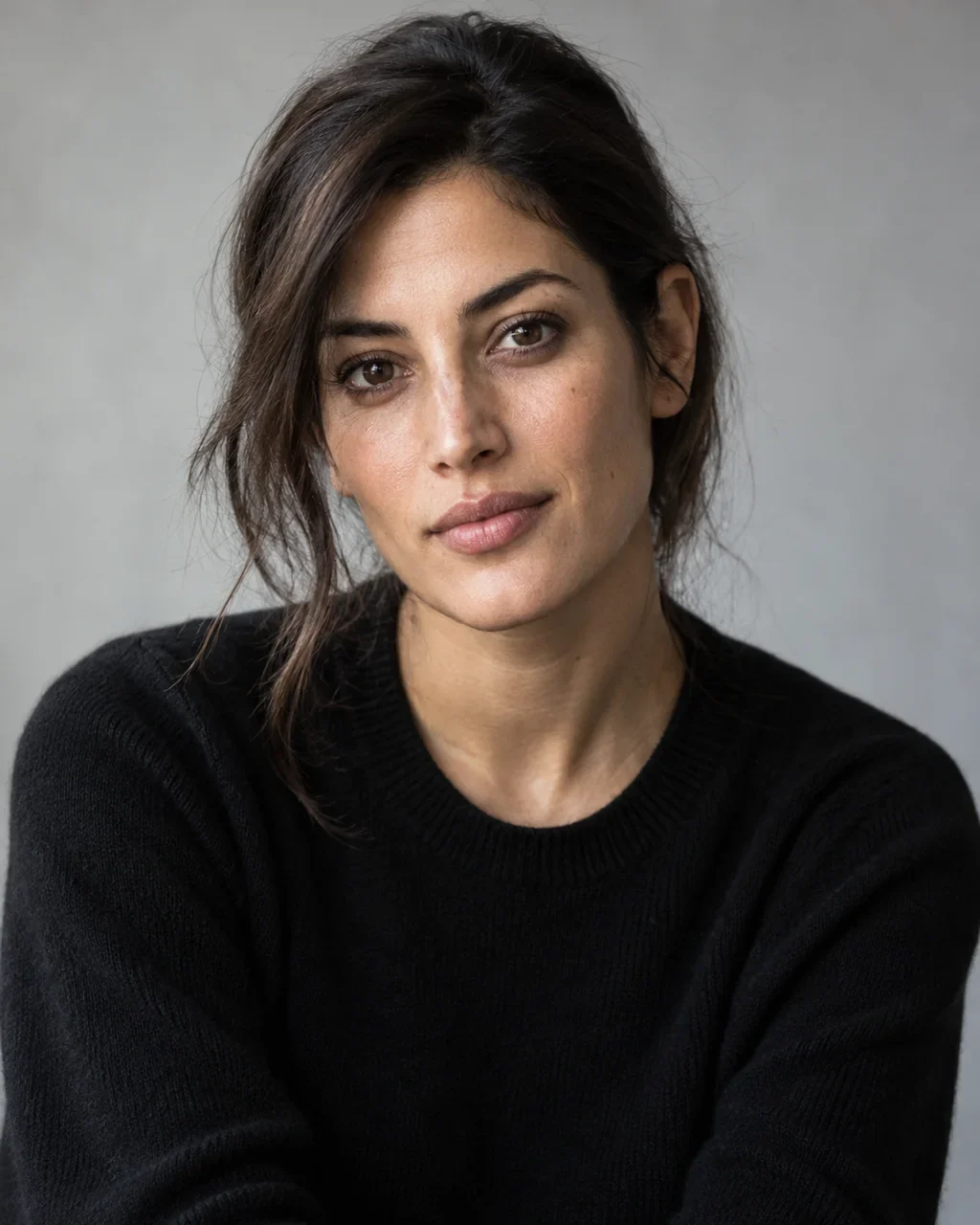
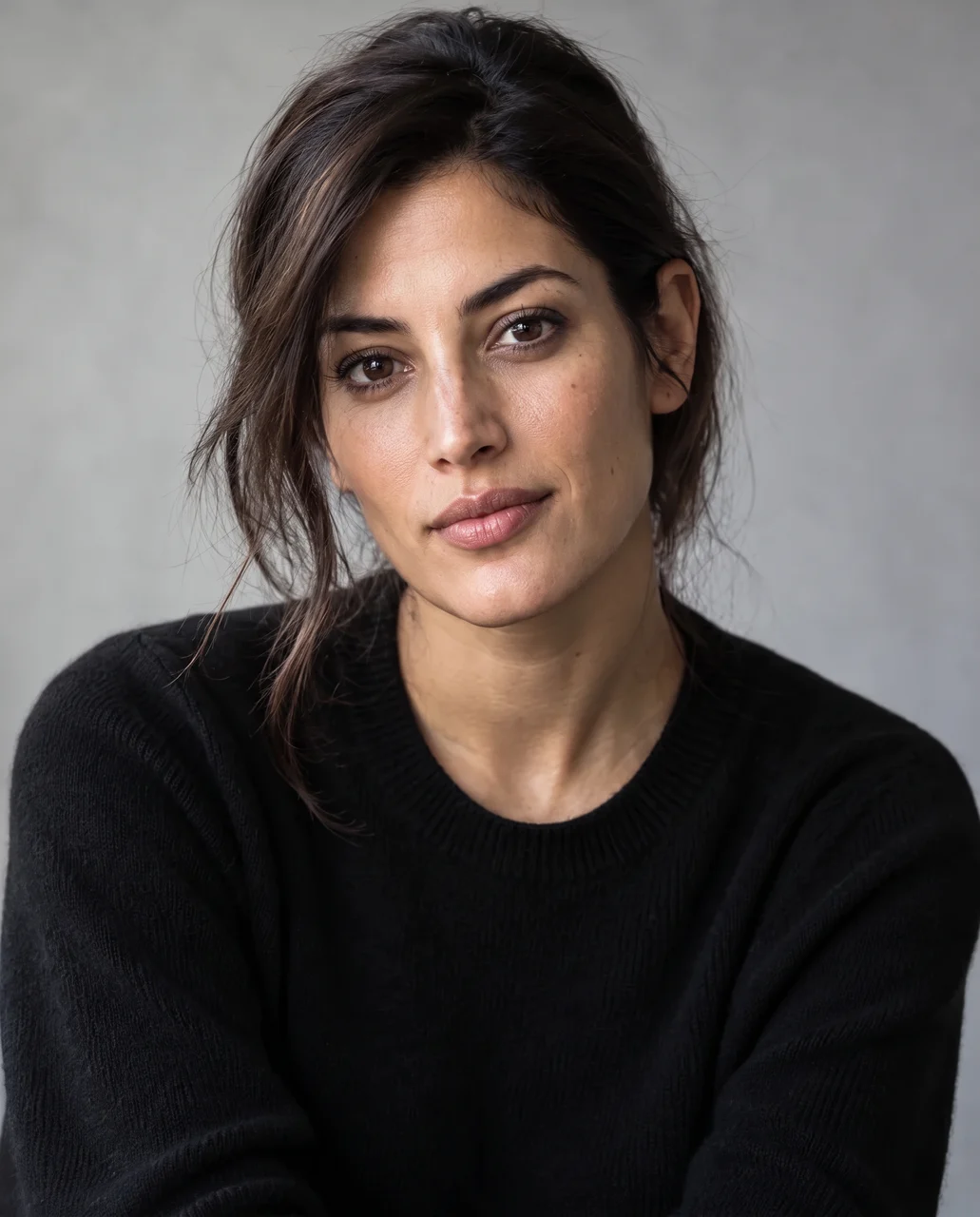
The subject is AI-generated. The second image is an actual AIPhotoRetouch result on that sample. It illustrates one input and setting; other photos can give different results.
Common questions
Can AI guarantee that my face will not change?
No. AIPhotoRetouch asks for identity preservation, but generative editing can alter local details. Compare with the original and reject an unfamiliar result.
Is a studio background required for a professional photo?
No. A clear, appropriate original background may already work. Use a generated backdrop only when it solves a specific problem, and inspect the person as well as the new scene.